Why Your Favicon Isn't Showing: File Path, HTML Link Tags, and Cache Busting
Table of Contents
- Direct Diagnosis: 5 Reasons Why Your Favicon Disappears
- The Three Web Icon Standards: Context and Resolution
- GoToolstack Favicon Generator: Scope and Boundaries
- Production-Ready HTML Implementation
- Defeating Stubborn Browser Icon Cache
- Quick Diagnostic Checklist
- GoToolstack Client-Side Media Tools
- Technical References & Official Standards
1. Direct Diagnosis: 5 Reasons Why Your Favicon Disappears
When a favicon fails to display in the browser tab, the issue almost never stems from an invalid graphic file. In production, over 90% of missing favicon issues trace back to path resolution, server response headers, or aggressive client-side caching.
Examine these 5 diagnostic checkpoints before re-exporting your artwork:
- 1. File Path Resolution: Using a relative path like
href="favicon.png"on deep sub-pages (e.g./blog/post-1/) causes the browser to search for/blog/post-1/favicon.png, which returns a 404. Always use a root-relative path (href="/favicon.png"). - 2. HTTP Server Status: Verify that your server returns an HTTP 200 OK. An HTTP 403 Forbidden or 404 Not Found response leaves the tab blank.
- 3. HTML <link> Syntax: Ensure you include
rel="icon". While the WHATWG HTML Living Standard explicitly permitsrel="shortcut icon"for historical compatibility (treating it identically torel="icon"), modern standard best practice specifiesrel="icon"to avoid legacy syntax. - 4. Server MIME Types: The web server must deliver the file with
Content-Type: image/pngorimage/svg+xml. If sent astext/htmlorapplication/octet-stream, the browser will discard the icon. - 5. Aggressive Icon Caching: Desktop browsers cache favicons aggressively in an internal persistent database. Normal page refreshes do not invalidate this database.
2. The Three Web Icon Standards: Context and Resolution
Modern web applications require different icon assets depending on where they are displayed. Confusing a browser tab icon with mobile home screen icons leads to distorted rendering:
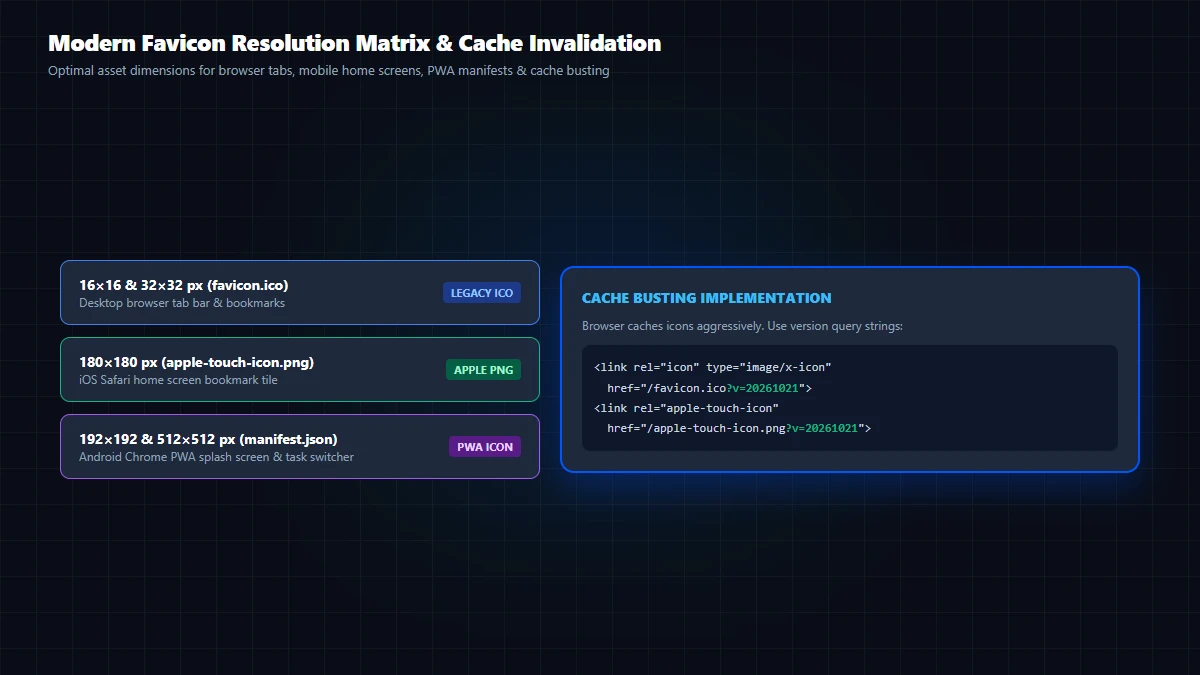
| Icon Standard | Display Context | Dimensions | HTML / Manifest Tag |
|---|---|---|---|
| Tab Favicon | Browser Tabs & Bookmarks | 16x16, 32x32 px PNG / SVG | <link rel="icon" type="image/png" sizes="32x32" href="/favicon-32x32.png"> |
| Apple Touch | iOS Safari Home Screen | 180x180 px PNG | <link rel="apple-touch-icon" sizes="180x180" href="/apple-touch-icon.png"> |
| Web App PWA | Progressive Web App Splash | 192x192, 512x512 px PNG | manifest.json ("icons": [...]) |
3. GoToolstack Favicon Generator: Scope and Boundaries
The GoToolstack Favicon Generator processes your image client-side via browser Canvas, rendering 5 crisp square PNG dimensions:
16x16, 32x32, 96x96, 192x192, and 512x512 px.
OUTPUT SPECIFICATIONS & SIZES: The GoToolstack Favicon Generator processes images client-side via the HTML5 Canvas engine to generate 5 standard square PNG outputs: 16x16, 32x32, 96x96, 192x192, and 512x512 px. Simply renaming a .png file to .ico does NOT create a valid binary ICO directory; use the PNG files directly or export a dedicated multi-resolution ICO if legacy desktop browser support is required. Scalable SVG icons and 180x180 px Apple Touch icons can be exported from vector design tools or prepared by resizing the 512px PNG asset.
4. Production-Ready HTML Implementation
Place the following link tags in the <head> of your HTML documents. Notice the root-relative paths and the version query string (?v=2) used for cache invalidation:
<!-- 1. Modern Scalable Vector Favicon (Chrome, Firefox, Edge) -->
<link rel="icon" type="image/svg+xml" href="/favicon.svg?v=2">

<!-- 2. Standard High-Resolution PNG Favicons (GoToolstack Output) -->
<link rel="icon" type="image/png" sizes="32x32" href="/favicon-32x32.png?v=2">
<link rel="icon" type="image/png" sizes="16x16" href="/favicon-16x16.png?v=2">

<!-- 3. Apple Touch Icon for iOS Safari Home Screen -->
<link rel="apple-touch-icon" sizes="180x180" href="/apple-touch-icon.png">
5. Defeating Stubborn Browser Icon Cache
Desktop browsers cache favicons in dedicated internal databases that persist even through standard page reloads. To verify updates immediately:
- Append a query parameter: Update your HTML tag to
href="/favicon-32x32.png?v=2". This forces all browsers and CDN edges to fetch the new asset immediately. - Perform a hard reload: In Chrome, Edge, or Firefox, press
Ctrl+F5(Windows) orCmd+Shift+R(macOS) to bypass cached page assets. - Test in a private/incognito window: A fresh incognito session isolates your test from any residual tab icon databases.
6. Quick Diagnostic Checklist
- File is stored at the server root directory and uses a root-relative path (
href="/favicon-32x32.png"). - Server returns HTTP 200 OK with correct Content-Type (
image/pngorimage/svg+xml). - HTML link tags are located inside the
<head>element with validrel="icon". - Query string versioning (
?v=2) is appended to bust persistent client caching. - Appearance verified in fresh private/incognito windows across Chrome, Firefox, Safari, and Edge.
7. GoToolstack Client-Side Media Tools
Process and optimize web graphics locally in your browser with zero server uploads:
- Favicon Generator: Client-side tool generating 5 crisp PNG sizes (16, 32, 96, 192, 512 px) via browser Canvas.
- SVG Optimizer: Minify and clean vector SVG graphics for scalable, modern browser tab icons.
- Media & Images Hub: Full collection of client-side image compressors, format converters, and EXIF tools.
Technical References & Official Standards
- W3C / WHATWG: HTML Living Standard: The link element & rel="icon".
- MDN Web Docs: How to Add a Favicon in HTML.
- Apple Developer: Configuring Web Applications (apple-touch-icon).
- Google Search Central: Define a Favicon to Show in Search Results.