How to Check and Remove EXIF GPS Location Metadata from Photos Before Sharing
Table of Contents
- The Hidden Risk: GPS Coordinates and Device Fingerprints in Every Photo
- The 3-Step Privacy Workflow: Inspect → Scrub → Verify
- Format Realities: JPEG APP1 Markers vs. PNG/WebP Chunks
- Critical Privacy Distinction: Metadata Scrubbing Does NOT Redact Visual Pixels!
- Pre-Share Verification Checklist
- Technical References & Official Standards
1. The Hidden Risk: GPS Coordinates and Device Fingerprints in Every Photo
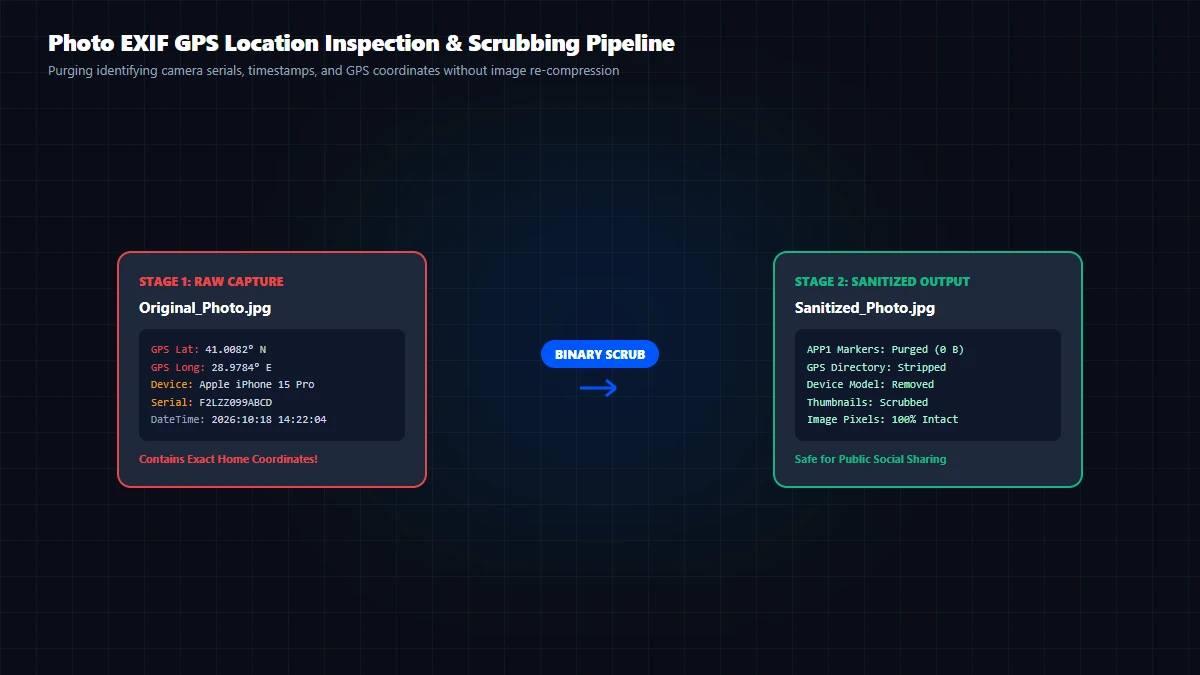
Every photo captured with a modern smartphone (iPhone or Android) or digital camera contains dozens of hidden metadata tags known as EXIF (Exchangeable Image File Format):
- Precise GPS Geolocation: Exact latitude, longitude, and altitude down to individual house and door numbers (e.g.
41° 00' 32.4" N, 28° 58' 41.2" E). - Device & Hardware Fingerprints: Phone model (iPhone 15 Pro, Samsung Galaxy S24), camera lens serial, firmware build, and sensor settings.
- Timestamp History: Exact date, second, and timezone when the picture was taken.
Sharing an unscrubbed photo on a forum, classified ad site, or via AirDrop and direct email inadvertently reveals where you live, when you are away from home, and your personal hardware profile.
2. The 3-Step Privacy Workflow: Inspect → Scrub → Verify
- Step 1: Inspect Hidden Tags: Drop your image into the GoToolstack EXIF Viewer. Review the GPS map pin, camera maker, exposure time, and software tags.
- Step 2: Strip Metadata: Open the GoToolstack EXIF Scrubber. The client-side engine strips the APP1 header and exports a clean JPEG/PNG file.
- Step 3: Re-Verify the Output: Upload the cleaned file back into the EXIF Viewer. Confirm that exactly
0 EXIF tagsare detected.
3. Format Realities: JPEG APP1 Markers vs. PNG/WebP Chunks
Different image formats store metadata in distinct binary containers:
| Image Format | Metadata Binary Location | Scrubbing Mechanism | Visual Preservation |
|---|---|---|---|
| JPEG / JPG | APP1 (0xFFE1) and APP2 (0xFFE2) segment headers | Canvas re-rasterization omitting binary APP markers | Maintains dimensions; re-encoded at quality 0.92. |
| PNG | eXIf, tEXt, zTXt, and iTXt auxiliary chunks | Chunk stripping during lossless Canvas blob export | 100% lossless pixel reconstruction. |
| WebP | EXIF extended file format RIFF sub-chunk | RIFF header reconstruction excluding metadata chunk | Lossless or quality-optimized canvas output. |
4. Critical Privacy Distinction: Metadata Scrubbing Does NOT Redact Visual Pixels!
Metadata Scrubbing Removes File Headers, NOT Visible Image Pixels: Stripping EXIF eliminates hidden GPS tags, but leaves the visible photo untouched. If your photo shows a street sign, house number, car license plate, or a family face, location and identity can still be determined. Use the Image Blur Tool to blur or pixelate sensitive visible elements.
- Direct File Sharing vs. Social Media: Platforms like Instagram or Facebook automatically strip EXIF when uploading to public feeds. However, direct sharing (AirDrop, email attachments, Google Drive/Dropbox links, messaging apps in 'document' mode, and second-hand listing sites) retains 100% of raw GPS tags.
- Canvas Re-encoding: The browser scrubber re-encodes images via HTML5 Canvas at quality 0.92, ensuring virtually indistinguishable visual fidelity while ensuring no binary leakage.
5. Pre-Share Verification Checklist
- Check 1: Scan photo with EXIF Viewer to inspect embedded GPS and timestamps.
- Check 2: Strip headers with EXIF Scrubber in your browser.
- Check 3: Reload cleaned image in EXIF Viewer to verify zero remaining tags.
- Check 4: Visually inspect pixels; blur license plates and house numbers with the Image Blur Tool.
- Check 5: Zero server uploads: All GoToolstack image tools operate entirely in client RAM.
Technical References & Official Standards
- CIPA DC-008-2012 / JEITA CP-3451C: Exchangeable Image File Format for Digital Still Cameras (Exif Version 2.3) APP1 and GPS IFD specifications.
- W3C HTML5 Canvas 2D Context: Specification for canvas.toBlob() MIME type handling, pixel array extraction, and memory constraints.