Why CSV Files Break in Excel: Encodings, Delimiters, and Leading Zeros
Table of Contents
- Direct Diagnosis: File Format vs. Excel Interpretation
- The Character Mojibake Trap: UTF-8 vs. UTF-8 with BOM
- The Semicolon vs. Comma Regional Conflict (Everything in Column A)
- Quoting Delimiters and Embedded Line Breaks (RFC 4180)
- Lost Leading Zeros and the 15-Digit Precision Limit
- Official Microsoft Excel Import Workflow (Step-by-Step)
- GoToolstack Client-Side Tools for Safe CSV Processing
- Technical References & Official Standards
1. Direct Diagnosis: File Format vs. Excel Interpretation
A CSV (Comma-Separated Values) file is nothing more than a plain, unformatted text stream. It contains raw characters, field delimiters, and line breaks. When a CSV appears broken in Microsoft Excel—with garbled characters, all data crammed into Column A, or missing credit card numbers—the underlying file itself is usually not corrupted. Instead, Excel's automatic default opening heuristics misinterpret the data stream.
Double-clicking a .csv file forces Excel to make automatic guesses based on your operating system's regional Windows settings instead of asking for your file's specific encoding, delimiter, or column data types. To fix these issues permanently, you must understand four distinct failure gates:
2. The Character Mojibake Trap: UTF-8 vs. UTF-8 with BOM
Modern web applications and database exports generate plain text encoded in UTF-8 without a Byte Order Mark. However, when you double-click a CSV file on Windows, desktop Excel defaults to the local legacy ANSI code page (e.g. Windows-1252 in Western Europe/US, Windows-1254 in Turkey, or CP932 in Japan).
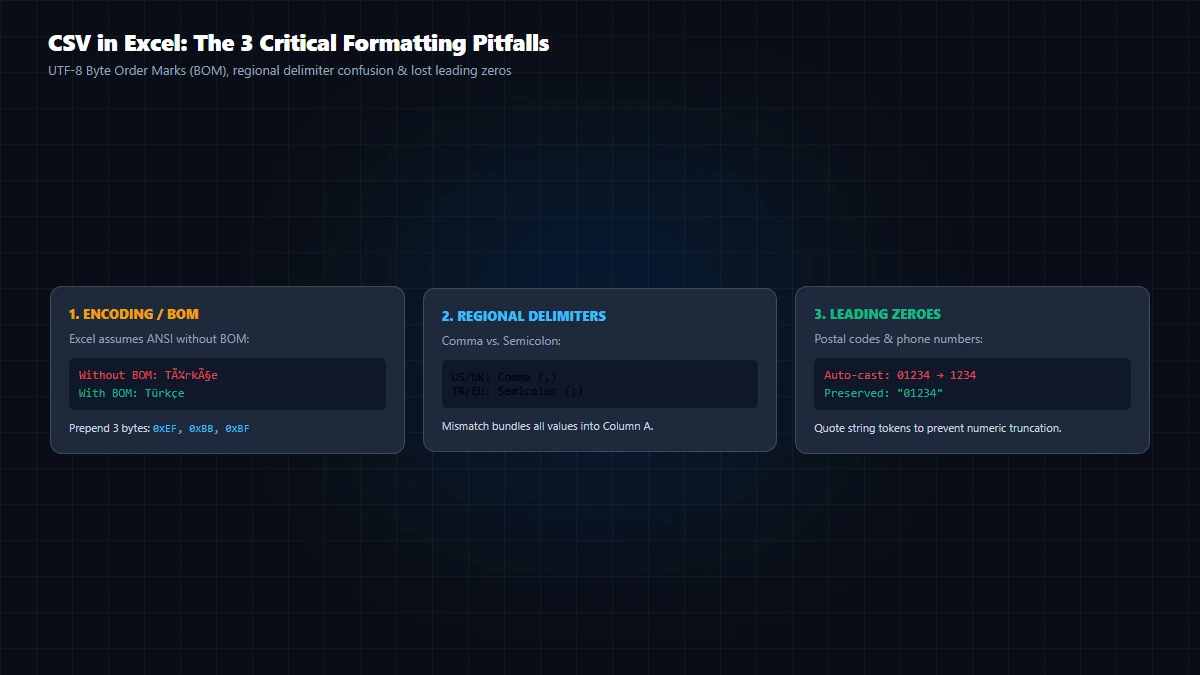
Without an explicit Byte Order Mark (BOM: the 3-byte sequence 0xEF, 0xBB, 0xBF) at the very start of the file, Excel reads multi-byte UTF-8 sequences as two or three separate single-byte ANSI characters. This produces classic mojibake:
| Intended Text | Corrupted Excel Display (No BOM) | Root Mechanism |
|---|---|---|
München / İstanbul |
München / İstanbul |
UTF-8 2-byte → ANSI Mojibake |
Français / Español |
Français / Español |
Diacritics parsed as individual code points |
€ 1,500 / ₺ 5,000 / ¥ 10,000 |
€ 1,500 / ₺ 5,000 / ¥ 10,000 |
Multi-byte currency symbols decoded into ANSI artifacts |
If generating CSV files for Excel users, include the UTF-8 BOM at file creation. In the GoToolstack JSON ↔ CSV Converter, simply check Add UTF-8 BOM (\uFEFF) for Excel before copying or downloading your file.
3. The Semicolon vs. Comma Regional Conflict (Everything in Column A)
In the United States and the UK, standard numbers use a period as the decimal separator (12.50) and a comma as the list delimiter. But in Continental Europe, South America, and Turkey, the comma is legally the decimal separator (12,50).
Because a comma cannot simultaneously serve as a decimal point and a field separator, Windows systems in these regions define the semicolon (;) as the default ListSeparator in regional registry settings. When you open an RFC 4180 standard comma-delimited CSV on a European PC by double-clicking, Excel finds zero semicolons, treats the entire row as a single string, and dumps all data into Column A.
Either configure the exporting tool to output semicolon-delimited files, or use Excel's Data > From Text/CSV wizard where you can explicitly pick the comma delimiter regardless of your Windows locale.
4. Quoting Delimiters and Embedded Line Breaks (RFC 4180)
What happens when a cell value contains a comma or an address with a line break? Under RFC 4180 rules, fields containing delimiters, double quotes, or newlines must be enclosed in double quotes. Literal quotes inside fields must be escaped with double quotes (""):
ID,Customer,Address,Notes
101,"Acme, Inc.","123 Industrial Way
Suite 400","Order confirmed with ""Express"" shipping"
5. Lost Leading Zeros and the 15-Digit Precision Limit
When Excel reads an unformatted CSV column, it attempts to guess the data type. If every character in a cell is a digit, Excel automatically casts the field into a floating-point number. This introduces two catastrophic, unrecoverable data corruptions:
Lost Leading Zeros: Postal codes and phone numbers (e.g. "00452" or "05321234567") are cast to integers (452 or 5321234567). Leading zeros are permanently discarded from memory.
15-Digit Precision Limit (Excel Engine vs. IEEE 754): Microsoft Excel's spreadsheet calculation engine explicitly caps numerical precision at 15 significant digits. While general IEEE 754 double-precision floating-point numbers can represent integers up to 253 (9,007,199,254,740,992, which is 16 digits) with zero rounding, Excel's internal application logic rounds all digits past the 15th position to zeroes. 16-digit credit cards or 19-digit bank account numbers (e.g. 1234567890123456) are irreversibly altered to 1234567890123450!
CRITICAL WARNING: Never believe claims that formatting the cell back to 'Text' after opening will recover truncated digits. Once Excel has parsed a 16+ digit integer as a float, the original ending digits are destroyed in application memory. Saving the workbook overwrites your original file with destroyed zeroes.
6. Official Microsoft Excel Import Workflow (Step-by-Step)
To open any CSV file safely without character corruption, column collisions, or digit truncation, follow Microsoft's official Power Query import workflow in modern Excel (Office 2016, 2019, 2021, and Microsoft 365):
- Open Excel with a blank workbook (do NOT double-click the CSV).
- Navigate to the top ribbon and select Data > Get Data > From File > From Text/CSV.
- In the preview dialog, set File Origin to
65001: Unicode (UTF-8). - Set Delimiter to Comma, Semicolon, or Tab based on your raw file structure.
- Click Transform Data (instead of Load). In the Power Query Editor, locate phone number, barcode, and ID columns. Click the data type icon in the column header and select Text. When prompted, choose Replace current step to stop Excel from ever casting the digits to floats.
- Click Close & Load to import clean, uncorrupted data into your worksheet.
- Save the workbook as an Excel Workbook (
.xlsx) instead of overwriting the raw original CSV file, preserving the original source data intact.
7. GoToolstack Client-Side Tools for Safe CSV Processing
If you need to transform or audit tabular data without desktop Excel quirks, use our zero-telemetry in-browser tools:
- JSON ↔ CSV Converter: Add UTF-8 BOM (\uFEFF), choose comma or semicolon delimiters, and customize CRLF/LF line endings.
- Excel ↔ CSV/JSON Converter: Convert spreadsheets directly in local memory with SheetJS without uploading data to external servers.
- Developer Tools Hub: Explore our full suite of client-side developer data formatters and validators.
Technical References & Official Standards
- IETF RFC 4180: Common Format and MIME Type for Comma-Separated Values (CSV) Files (Quoting, CRLF, and Delimiter rules).
- Microsoft Learn / Support: Import or export text (.txt or .csv) files in Microsoft Excel (Power Query data type preservation).
- Unicode Consortium: FAQ – UTF-8, UTF-16, UTF-32 & Byte Order Mark (BOM) guidelines.