How to Shift SRT Subtitle Timestamps and Convert to WebVTT (VTT)
Table of Contents
1. Understanding Subtitle Time Shifting vs. Automated Transcription
Subtitle desynchronization is a common issue when video frame rates change, intro animations are added, or audio tracks undergo editing. When subtitles display half a second too early or late, viewers lose context.
Important distinction: Time shifting is the global or relative adjustment of existing timestamp numbers (e.g. adding +500 ms to every cue). It is not speech-to-text (ASR) recognition or AI transcription; it operates purely on parsed subtitle cues and timestamp records.
2. Sample SRT Subtitle File (3 Cues)
To examine the shift mathematically, consider the following 3 standard SubRip (.srt) cues starting at 1.000 second:
1
00:00:01,000 --> 00:00:04,000
Welcome to GoToolstack Subtitle Studio.

2
00:00:04,500 --> 00:00:07,500
In this sample file, we shift timestamps by +500 ms.

3
00:00:08,000 --> 00:00:11,500
Export the corrected track to WebVTT format for HTML5 video.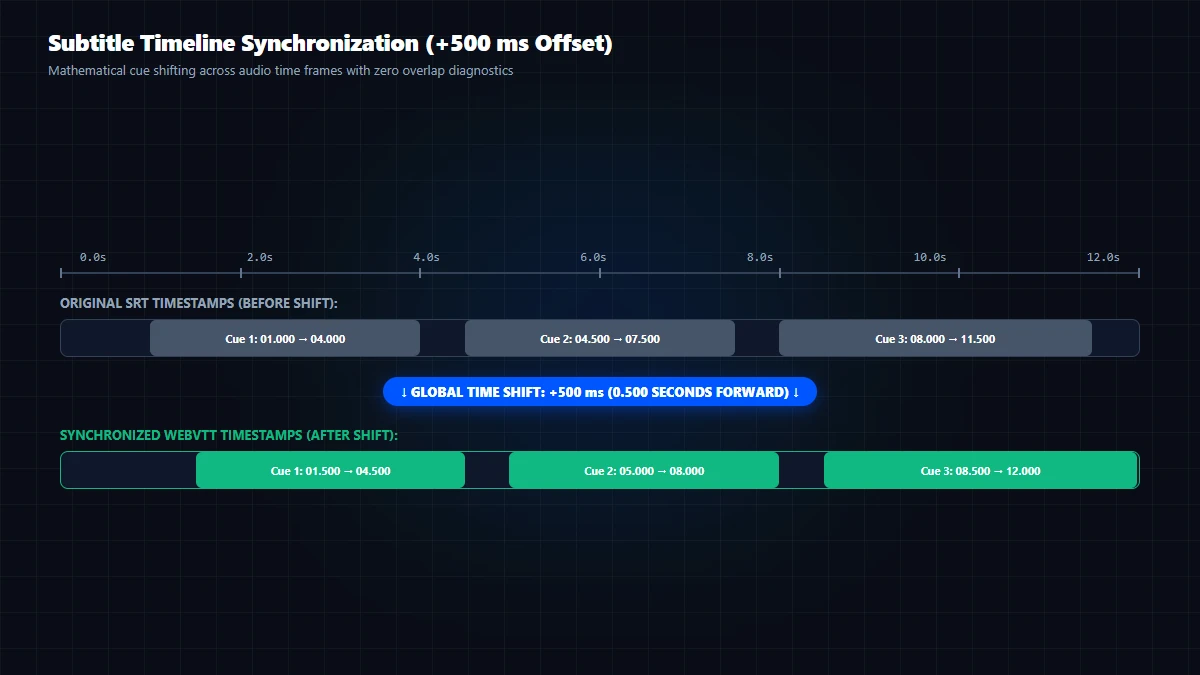
Download Sample File: You can download this sample file directly: sample_subtitles_en.srt.
3. Executing +500 ms Time Shift in GoToolstack Subtitles Studio
- Open Subtitle Studio: Navigate to GoToolstack Subtitles Studio.
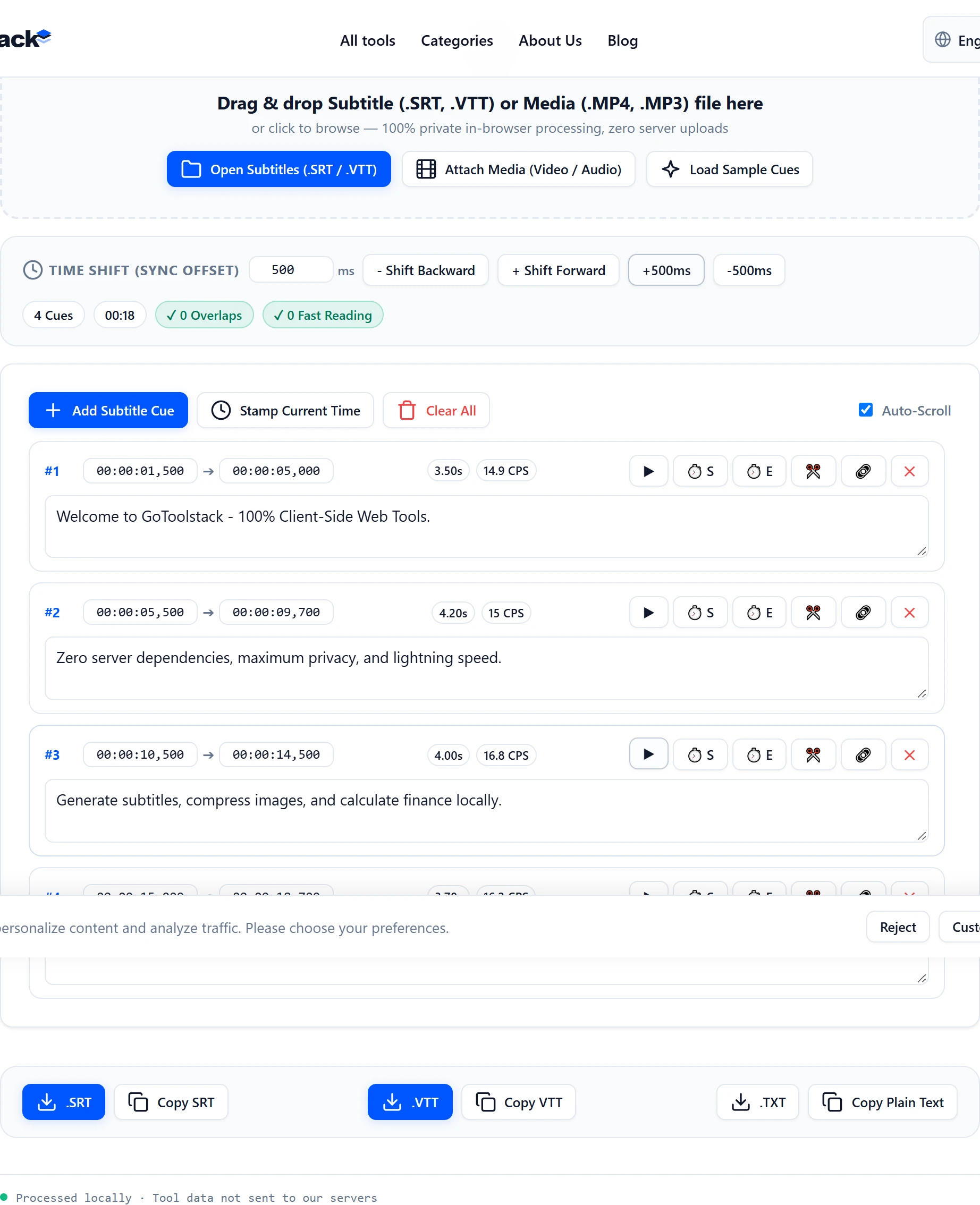
- Load Subtitle File: Click Open Subtitles (.SRT / .VTT) and select
sample_subtitles_en.srt. The tool parses each block into an interactive table showing cue number, start time, end time, duration, and text. - Enter Time Shift Value: In the Time Shift control bar, ensure the input is set to
500ms. Alternatively, click the quick preset button +500ms. - Apply Forward Shift: Click + Shift Forward. Every cue's start and end timestamps advance by exactly 500 milliseconds (0.500 seconds).
- Inspect Diagnostics: The diagnostics bar verifies that zero cue overlaps or negative start times were created.
4. Exporting to WebVTT (VTT) & Format Differences
Modern HTML5 <video> elements and web streaming platforms require WebVTT (.vtt) rather than legacy SRT. Click the Download .VTT button (#sub_btn_export_vtt) to export the result.
Let's inspect the shifted WebVTT output:
WEBVTT

1
00:00:01.500 --> 00:00:04.500
Welcome to GoToolstack Subtitle Studio.

2
00:00:05.000 --> 00:00:08.000
In this sample file, we shift timestamps by +500 ms.

3
00:00:08.500 --> 00:00:12.000
Export the corrected track to WebVTT format for HTML5 video.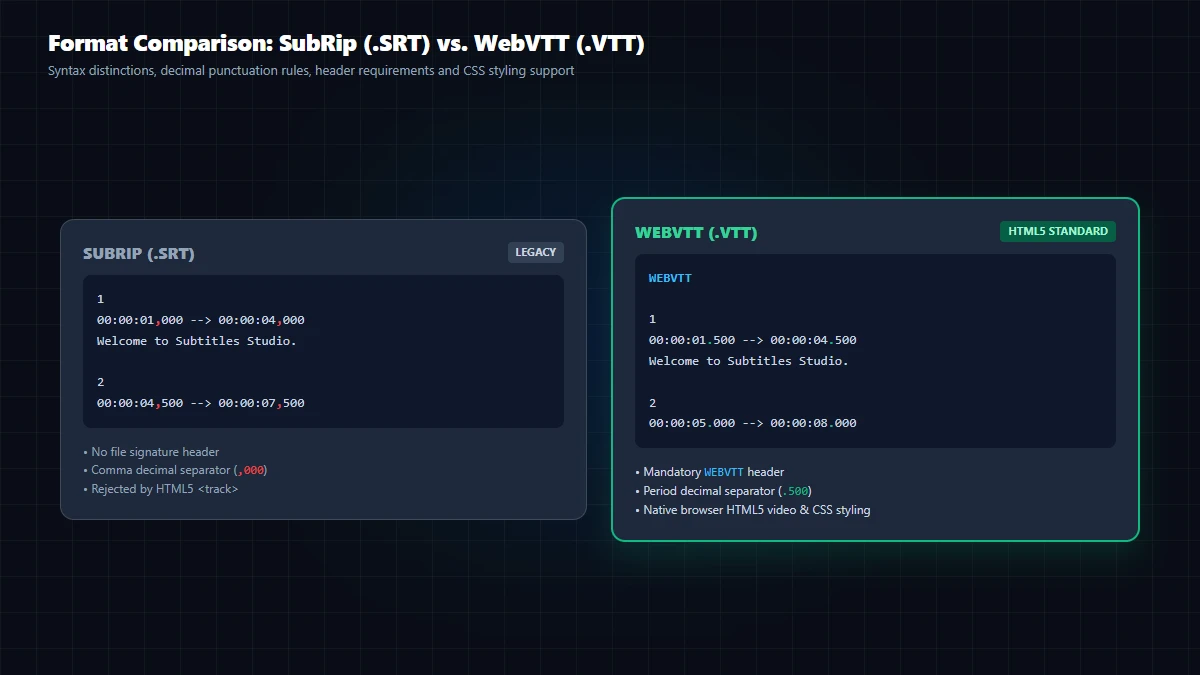
Download Result File: You can inspect the actual exported WebVTT file: sample_subtitles_en_shifted.vtt.
| Format Feature | SubRip (.SRT) | WebVTT (.VTT) | Browser / HTML5 Impact |
|---|---|---|---|
| Header Signature | None (starts directly with cue 1) | WEBVTT required on line 1 |
Browsers reject files without WEBVTT header |
| Decimal Separator | Comma (00:00:01,500) |
Period (00:00:01.500) |
HTML5 <track> parser fails on commas |
| Cue Styling & Settings | Limited HTML tags (<b>, <i>) |
CSS cues, alignment, line positioning | WebVTT enables native video styling |
5. Common Pitfalls & Edge Cases in Subtitle Processing
Pitfall 1: Clamping on Negative Timestamps
Problem: Shifting backward by -2000 ms when the first cue starts at 00:00:01,000 would produce an invalid negative timestamp (-00:00:01,000).
Tool Behavior: GoToolstack automatically clamps negative start times to 00:00:00,000 to prevent parser corruption, while warning you in the diagnostics bar.
Pitfall 2: Overlapping Cue End Times
Problem: If Cue 1 ends at 00:00:05,000 and Cue 2 begins at 00:00:04,500, both captions render on screen simultaneously, obscuring each other.
Tool Behavior: The diagnostics bar highlights overlaps in amber and provides a one-click Fix All Overlaps action to align adjacent cue boundaries cleanly.
Related Tools & Resources
- Subtitle Editor & Converter: Shift timestamps, edit cues, and export SRT/VTT.
- Video Cutter: Trim video segments to match subtitle cut boundaries.
- Audio & Video Hub: Complete audio and video tools suite.
- YouTube Creator Hub: Tools optimized for YouTube chapters and captions.